Zoom Functions in the Ribbon
Zoom Functions in the Ribbon
In the ribbon of the Home tab, we find the Zoom tools :
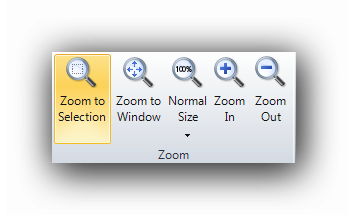
The cursor for this tool looks like this : 
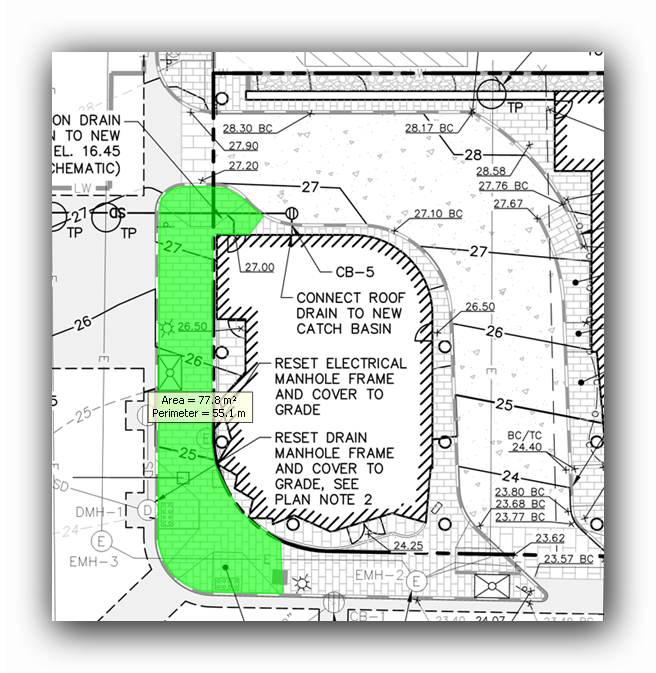
The Zoom to Selection optimally zooms and adjusts to a user defined zone on the canvas. Click on the Zoom to Selection tool then drag a zone from a corner to the opposite corner with the mouse while holding the left button down.

Here is the result of this operation on the canvas :
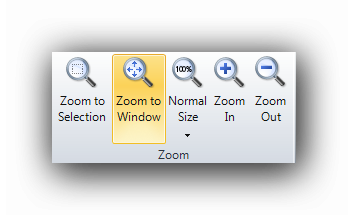
This tool will display the whole plan in the canvas.
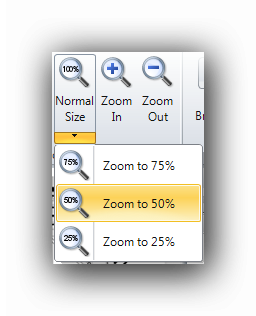
The Normal Size tool displays the plan to its actual size (100%). Clicking on the black arrow next to the button, the zoom factor can be adjusted to three (3) other pre-configured zoom factors ( 75%, 50% and 25% ).
The Zoom In and Zoom Out tools
There are many ways to zoom in or out in Active Takeoff :
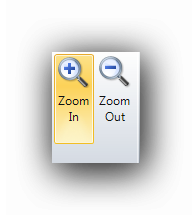
- By clicking on the ribbon Zoom In and Zoom Out buttons :
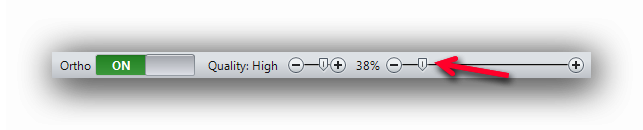
- By sliding the zoom needle in the status bar :
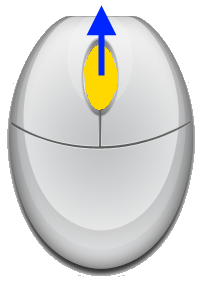
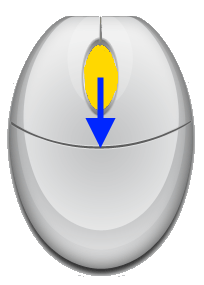
- By using the mouse wheel when the cursor is located on the canvas. The mouse wheel zoom is also available while measuring. The user can zoom in or out while a measurement is being taken.
|
|
|
|
Zoom In |
Zoom Out |
- By using the Keyboard : Zoom In ( + ) and Zoom Out ( - )